
1. Rhagymadrodd
This manual provides essential instructions for the safe and efficient use of your FSP ATX-300PA 300W ATX Power Supply. Please read this manual thoroughly before installation and operation to ensure proper functionality and to prevent damage to the unit or other components. Keep this manual for future reference.
2. Gwybodaeth Diogelwch
Dilynwch y rhagofalon diogelwch canlynol i atal anaf neu ddifrod:
- Always disconnect the power cord from the wall outlet before installing, removing, or servicing the power supply.
- Peidiwch ag agor y cyflenwad pŵer casing. Cyfaint ucheltage components are present inside, which can cause electric shock. There are no user-serviceable parts within.
- Ensure proper ventilation around the power supply to prevent overheating. Do not block any ventilation openings.
- Use the power supply only in dry environments. Avoid exposure to moisture, humidity, or liquids.
- This product is designed for internal computer use only. Do not use it for any other purpose.
- Ensure the power supply is compatible with your system's motherboard and components before installation.
3. Gosod a Gosod
Follow these steps to install the FSP ATX-300PA power supply into your computer system:
- Paratowch Eich System: Turn off your computer and disconnect the power cord from the wall outlet. Open your computer case.
- Tynnwch yr Hen Gyflenwad Pŵer (os yn berthnasol): Disconnect all power cables from the motherboard, graphics card, and other components. Unscrew and remove the old power supply from the case.
- Gosod Cyflenwad Pŵer Newydd: Carefully place the FSP ATX-300PA into the power supply bay of your computer case. Ensure the fan is oriented correctly for optimal airflow (typically facing downwards or inwards, depending on case design). Secure the power supply with screws provided with your computer case.
- Cysylltu Pŵer y Famfwrdd: Connect the main 20+4 pin ATX power connector to the corresponding socket on your motherboard. Ensure it clicks into place.
- Cysylltu Pŵer CPU: Connect the 4-pin (or 4+4 pin) CPU power connector to the CPU power socket on your motherboard.
- Cysylltu Pŵer Ymylol: Connect SATA power connectors to your hard drives, SSDs, and optical drives. Connect Molex connectors to any other peripherals that require them.
- Connect Graphics Card Power (if applicable): If your graphics card requires additional power, connect the appropriate PCIe power connectors from the power supply.
- Rheoli Ceblau: Route cables neatly to improve airflow and aesthetics within the case.
- Close Case and Connect Power: Close your computer case. Connect the AC power cord to the power supply's input socket and then to a wall outlet or surge protector.
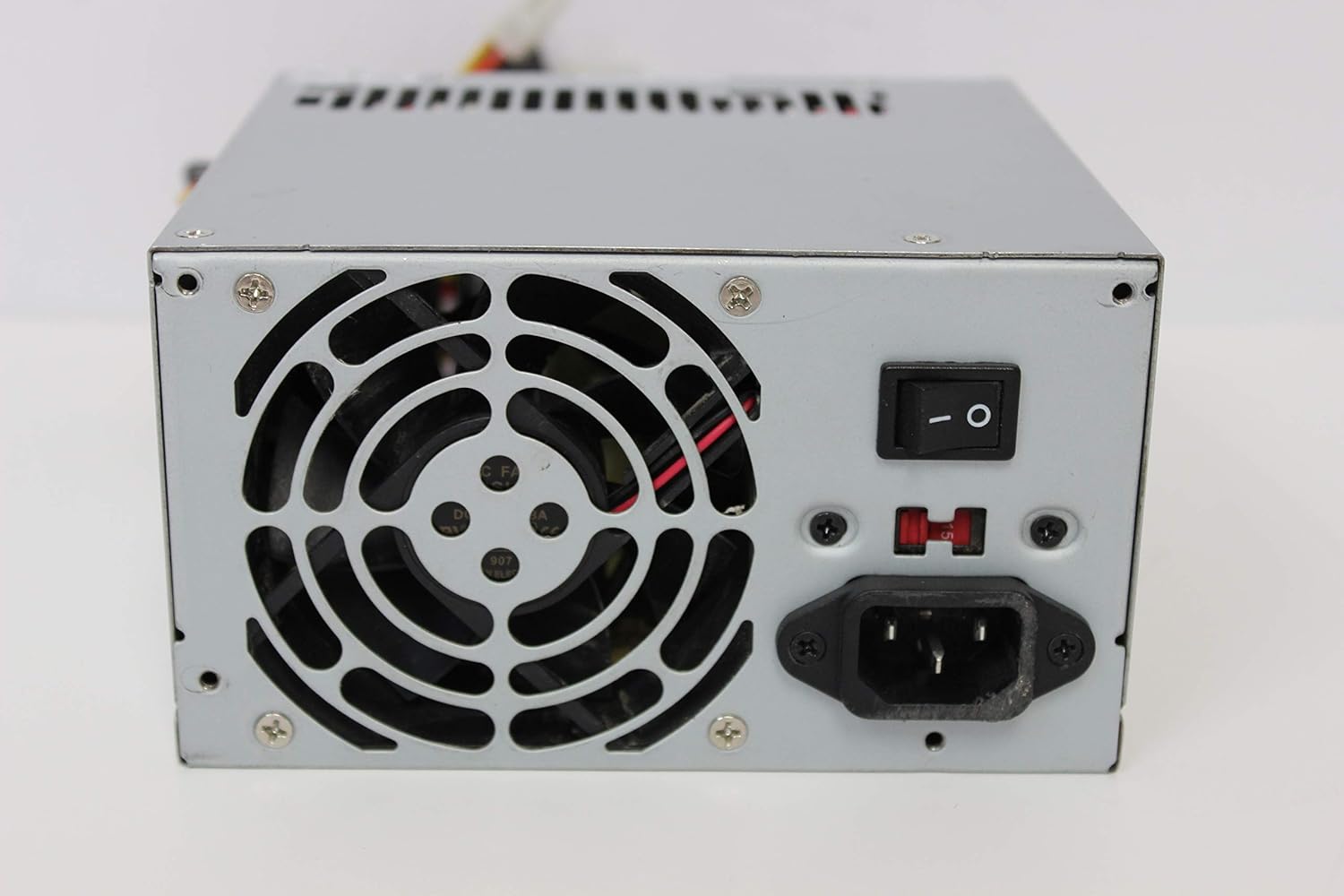
Delwedd: Cefn view of the FSP ATX-300PA power supply. This image displays the rear panel of the FSP ATX-300PA power supply. Visible components include the AC power input socket, the main power on/off switch, and the exhaust fan grille. A fuse holder is also present.

Image: Power connectors of the FSP ATX-300PA. This image shows a selection of power cables and connectors extending from the FSP ATX-300PA power supply. The prominent connector is the 20+4 pin ATX motherboard power connector, alongside several peripheral power connectors (e.g., Molex, SATA, 4-pin CPU).
4. Cyfarwyddiadau Gweithredu
Once the power supply is correctly installed and all connections are secure:
- Ensure the power switch on the rear of the power supply is in the "ON" (I) position.
- Press the power button on your computer case to start the system.
- The power supply will provide stable power to all connected components.
5. cynnal
Mae cynnal a chadw rheolaidd yn helpu i sicrhau hirhoedledd a pherfformiad gorau posibl eich cyflenwad pŵer:
- Glanhau Llwch: Periodically (e.g., every 6-12 months), disconnect the power supply from the wall outlet and open your computer case. Use compressed air to gently remove dust buildup from the power supply's fan and vents. Hold the fan blades to prevent them from spinning excessively during cleaning.
- Arolygiad Fan: Check the power supply fan for any obstructions or unusual noises. A clean, unobstructed fan is crucial for effective cooling.
- Gwiriad cebl: Ensure all power cables remain securely connected to their respective components.
Rhybudd: Do not attempt to lubricate or disassemble the power supply fan. Do not open the power supply casing am unrhyw reswm.
6. Datrys Problemau
If you encounter issues with your FSP ATX-300PA power supply, consider the following troubleshooting steps:
- Dim pŵer i'r system:
- Gwnewch yn siŵr bod y llinyn pŵer AC wedi'i gysylltu'n ddiogel â'r cyflenwad pŵer a'r soced wal.
- Verify that the power switch on the rear of the power supply is in the "ON" (I) position.
- Gwiriwch a yw'r soced wal yn gweithio trwy blygio dyfais arall i mewn.
- Confirm all internal power connectors (20+4 pin ATX, CPU, peripherals) are firmly seated.
- Ansefydlogrwydd System neu Gau i Lawr ar Hap:
- Ensure the power supply is adequately ventilated and not overheating.
- Verify that the total power draw of your components does not exceed the power supply's 300W capacity.
- Check for loose connections to any components.
- Sŵn Anarferol:
- If you hear grinding or rattling, it may indicate a fan issue. Disconnect power and inspect the fan for obstructions. Do not attempt to repair the fan yourself.
If issues persist after performing these checks, it may indicate a faulty power supply or another component. Consider professional diagnosis.
7. manylebau
| Brand | FSP |
| Rhif Model | ATX-300PA |
| Allbwn Wattage | 300 Wat |
| Ffactor Ffurf | ATX |
| Math o Gysylltydd | ATX |
| UPC | 754031288653 |
| Gwneuthurwr | FSP GROUP INC. |
8. Gwarant a Chefnogaeth
For detailed warranty information, technical support, or service inquiries regarding your FSP ATX-300PA power supply, please refer to the official FSP Group INC. website or contact their customer support directly. Warranty terms and conditions may vary by region and purchase date.